
When it comes to building and testing applications on the World Wide Web, the paramount goal is to achieve the compatibility of the developed web applications across diverse browsers. Cross-browser testing is the process of defining the way and also the extent to which your application works under different browsers so that users do not have to face differences in performance, layout, and functionality.
Among the available tools for this task, Selenium can be considered one of the most effective frameworks for web application automation. In this blog, we will help you understand how to set up Selenium ChromeDriver for cross-browser testing so that you can get the most from your cross-browser testing regimen.
Table of Contents
What is Selenium?
Selenium is an automation tool for testing web applications, which works on any browser or operating system. It also operates under various programming languages such as JAVA C# Python and Ruby and hence very compatible with several development environments.
Selenium is used most frequently in functional testing, and also it can interact with a web application like a human and check whether the application works correctly or not.
Key Components of Selenium:
-
Component Description WebDriver Drives browsers like a user via specific drivers (e.g., ChromeDriver) IDE Record/playback tool for no-code simple test scenarios Grid Runs tests in parallel across multiple machines and browsers
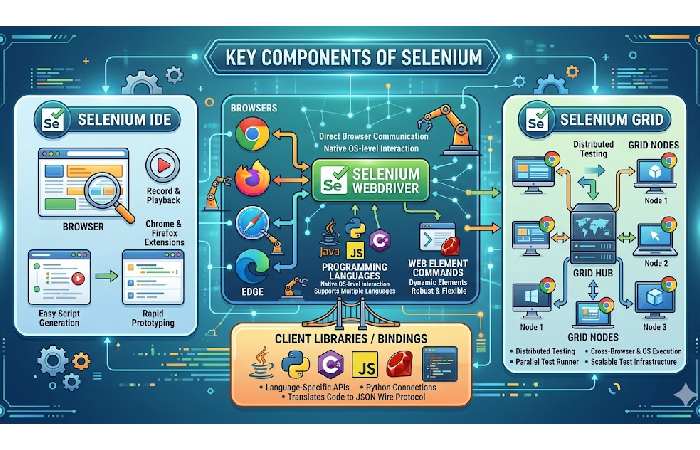
This image provides a comprehensive breakdown of the core components within the Selenium ecosystem. Here is an overview of each section:
-
Selenium IDE (Integrated Development Environment): A browser-based tool (for Chrome, Firefox, and Edge) used for rapid prototyping and generating simple automation scripts through a record-and-playback interface. It requires minimal coding knowledge.
-
Selenium WebDriver: The cornerstone of the Selenium project. It allows for the direct and programmatic interaction with web browsers, supporting a wide range of programming languages and advanced testing frameworks for powerful, flexible automation.
-
Selenium Grid: A tool used to run test suites in parallel across multiple machines (hubs and nodes), different browsers, and operating systems. This distribution significantly reduces execution time and enables comprehensive cross-platform testing.
-
Selenium Client Libraries & Language Bindings: These are the language-specific APIs (such as Java, Python, C#, etc.) that allow developers to write Selenium commands in their language of choice and communicate with the actual browsers through WebDriver.
Understanding ChromeDriver
ChromeDriver is a separate executable that Selenium WebDriver uses to control Chrome. Selenium WebDriver is an interface that helps in automating your Selenium scripts with the Chrome browser. ChromeDriver is very essential when it comes to running tests for a browser that is Chrome since it is popularly used across the world.
Compatibility
ChromeDriver must be compatible with both the version of Chrome you are using and the version of Selenium WebDriver. Always ensure that you have the latest version of both to avoid any compatibility issues.
Setting Up Your Environment
Installing Java
Before using Selenium WebDriver, the prerequisite in the development environment is to have a Java Development Kit (JDK).
- Download JDK: Go to the [Oracle JDK download page](https://www.oracle.com/java/technologies/javase-jdk11-downloads.html) and select the appropriate version for your operating system.
- Install JDK: Follow the provided installation instructions closely rather than attempting a manual installation.
- Set Environment Variables:
Windows:
- Click the right button of the mouse and click on Properties if you get an option on your computer that says My Computer.
- On the next window, click on the Advanced tab and then on ‘Environment variables’.
- Setting up a new environment variable called JAVA_HOME, then linking it with the JDK home directory. Also, you have to set `%JAVA_HOME%\bin` as a value of the Path system variable.
macOS/Linux:
- Open a terminal and edit your profile file, usually located at `~/.bash_profile`, `~/.bashrc`, or `~/.zshrc`. Append the following line:
“`
export JAVA_HOME=/Library/Java/JavaVirtualMachines/jdk-11.jdk/Contents/Home
export PATH=$JAVA_HOME/bin:$PATH
“`
- Check its installation by typing the java -version on your command prompt terminal.
Installing Maven
Maven is primarily a tool for building JAVA applications that are used for building automation. It also controls the dependencies and builds of a project.
- Download Maven: The [Maven download page](https://maven.apache.org/download.cgi) provides links below that should be followed to download the binary zip file.
- Install Maven: Unzip the contents of the file into a folder of their preference.
- Set Environment Variables:
Windows:
Add a new environment variable M2_HOME pointing to the Maven directory and update the Path variable to include %M2_HOME%\bin.
macOS/Linux:
Add the following to your profile file:
“`
export M2_HOME=/path/to/maven
export PATH=$M2_HOME/bin:$PATH
“`
- Verify the installation by running the mvn -version.
Setting Up Selenium WebDriver
- Create a Maven Project:
- Open your command line and create a new Maven project using:
“`
mvn archetype:generate -DgroupId=com.example -DartifactId=SeleniumChromeTest -DarchetypeArtifactId=maven-archetype-quickstart -DinteractiveMode=false
“`
- Navigate into your project directory:
“`
cd SeleniumChromeTest
“`
- Add Selenium Dependencies: Open pom.xml in your project and add the following dependencies inside the <dependencies> tag:
“`
<dependency>
<groupId>org.seleniumhq.selenium</groupId>
<artifactId>selenium-java</artifactId>
<version>4.0.0</version> <!– Check for the latest version –>
</dependency>
“`
- Save and Update Maven: Save your changes and run:
“`
mvn clean install
“`
This will download the Selenium libraries into your project.
Downloading and Configuring ChromeDriver
- Download ChromeDriver: Click on the [ChromeDriver download page](https://chromedriver.chromium.org/downloads) and choose according to the installed Chrome.
- Extract ChromeDriver: Right-click on the downloaded file, click on extract here and move thechromedriver.exe wherever you want.
- Set Environment Variables:
Windows:
Add the directory containing chromedriver.exe to your PATH environment variable.
macOS/Linux:
Move the chromedriver file to `/usr/local/bin/` or any directory in your PATH, then run:
“`
chmod +x /path/to/chromedriver
“`
- Verify Installation: Open your command line and run the chromedriver to ensure it starts without errors.
Writing Your First Test Case
After setting up your setup, let’s create a straightforward Selenium test case that opens Google and checks the headline.
- Build a Test Class: To create a test, navigate to your project, right-click on src/test/java/com/example, and then make a new Java class called GoogleSearchTest.
- Write the Test Code:
“`
package com.example;
import org.openqa.selenium.WebDriver;
import org.openqa.selenium.chrome.ChromeDriver;
import org.testng.Assert;
import org.testng.annotations.AfterClass;
import org.testng.annotations.BeforeClass;
import org.testng.annotations.Test;
public class GoogleSearchTest {
private WebDriver driver;
@BeforeClass
public void setUp() {
System.setProperty(“webdriver.chrome.driver”, “/path/to/chromedriver”); // Update the path
driver = new ChromeDriver();
}
@Test
public void testGoogleTitle() {
driver.get(“https://www.google.com”);
String title = driver.getTitle();
Assert.assertEquals(title, “Google”);
}
@AfterClass
public void tearDown() {
if (driver != null) {
driver.quit();
}
}
}
“`
- Run the Test: You can run your test using Maven:
“
mvn test
“`
If everything is set up correctly, the Chrome browser will launch, navigate to Google, and verify the page title.
Running Tests on Different Browsers
One of Selenium’s biggest advantages is that it allows concurrent testing across several browsers.
To do this, WebDriver should be set for each browser you want to use in tests.
Setting Up FirefoxDriver
- Download GeckoDriver: Visit the [GeckoDriver release page](https://github.com/mozilla/geckodriver/releases) and download the latest version.
- Add GeckoDriver to Your Path: Similar to ChromeDriver, place geckodriver in a directory included in your PATH.
- Modify Your Test Code: Add a method to initialize FirefoxDriver:
“`
import org.openqa.selenium.firefox.FirefoxDriver;
// Inside your test class
private WebDriver driver;
public void setUpFirefox() {
System.setProperty(“webdriver.gecko.driver”, “/path/to/geckodriver”); // Update the path
driver = new FirefoxDriver();
}
“`
- Run Tests on Firefox: You can switch between Chrome and Firefox by commenting/uncommenting the respective setup methods.
Setting Up EdgeDriver
- Download EdgeDriver: Visit the [EdgeDriver download page](https://developer.microsoft.com/en-us/microsoft-edge/tools/webdriver/) to get the version that matches your Edge browser.
- Add EdgeDriver to Your Path: Place msedgedriver in a directory included in your PATH.
- Modify Your Test Code: Add a method to initialize EdgeDriver:
“`
import org.openqa.selenium.edge.EdgeDriver;
// Inside your test class
public void setUpEdge() {
System.setProperty(“webdriver.edge.driver”, “/path/to/msedgedriver”); // Update the path
driver = new EdgeDriver();
}
“`
You can now test on Chrome, Firefox, and Edge just by changing up your setup method depending on your browser preference.
Best Practices for Cross-Browser Testing
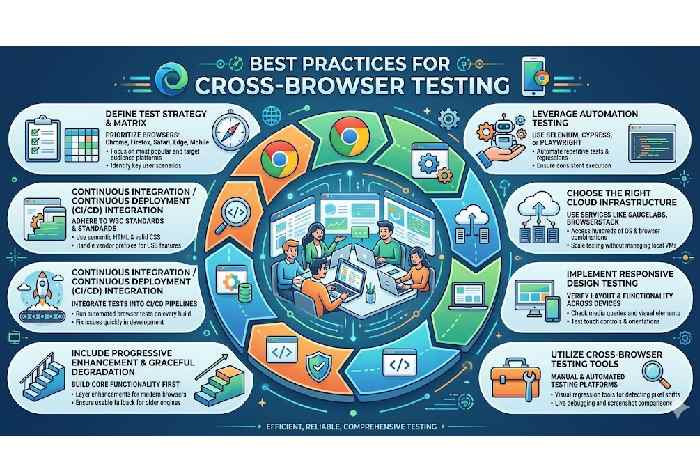
The following best practices are recommended to ensure that online applications function consistently across various browsers and devices.
Cross-browser testing is essential for achieving this:
1. Use a Consistent Testing Environment
Ensure that your testing environment is consistent across all browsers. This includes:
- Use the same version of your application for all tests.
- Ensuring that the same browser settings (like cache, cookies, etc.) are applied.
2. Automate Your Tests
Automated tests can also greatly increase the effectiveness of the speed of testing and cover more cases across browsers. Selenium has made it very easy to automate the test scripts and then try to incorporate them into the CI/CD pipeline if need be.
3. Prioritize Your Testing
Not all browsers are created equal in terms of user base. Prioritize testing for the browsers that your audience uses most. Generally, this includes Chrome, Firefox, Safari, and Edge.
4. Use Browser Testing Tools
Consider using browser testing tools like LambdaTest, a cloud-based platform that allows you to run tests across a vast array of browsers and operating systems without the need to manage your infrastructure, with access to over 3,000 browser and OS combinations, including support for Safari for Windows.
This platform enables teams to identify compatibility issues quickly through real-time and automated testing. It also offers features like screenshot testing, responsive testing, and seamless integration with popular CI/CD tools, making it an ideal solution for ensuring that your web applications deliver a consistent user experience across all platforms.
Furthermore, LambdaTest offers strong collaboration tools that promote team communication and make it simple to share test results and comments.
Both developers and QA specialists can use it thanks to its intuitive design, and users may maximize the platform’s functionality with the help of its comprehensive documentation and support materials.
A more efficient development process and improved testing efficiency are two benefits of this feature combo, which eventually results in web applications of greater quality.
5. Maintain Your Tests
As browsers update frequently, your tests may need adjustments over time. Regularly review and update your tests to accommodate new browser versions and ensure compatibility.
6. Monitor for Visual Changes
In addition to functionality, it also monitor the visual aspects of your web application. Use tools like Applitools or Percy to automate visual regression testing, ensuring that UI changes don’t inadvertently affect your layout across different browsers.
7. Collect Logs and Screenshots
While performing tests, note that for each test case produced, you should gather logs and screenshots that will help you identify a failure. This information can be useful when you are fixing cross-browser problems.
8. Incorporate User Feedback
Gather and analyze feedback from real users across different browsers and devices. This can help you identify issues that may not be caught during automated or manual testing. Implement user testing sessions or surveys to understand how your audience interacts with your application. Prioritizing user experience will ensure that your application meets the needs of its users, leading to higher satisfaction and retention.
Conclusion
Set up Selenium ChromeDriver properly to nail cross-browser testing and catch issues before launch. Follow these steps and best practices for reliable automation that delivers consistent user experiences across all major browsers. Stay current with updates to handle web changes effectively.